
-
Navigate to www.myofficepro.myisolved.com/cloudservice, another ESS website, or use the App.
-
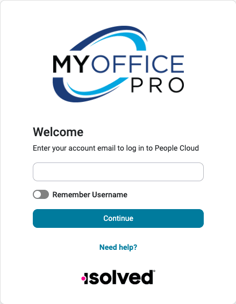
Key in your username
- Click Continue
-
Key in your password.
-
Click Continue
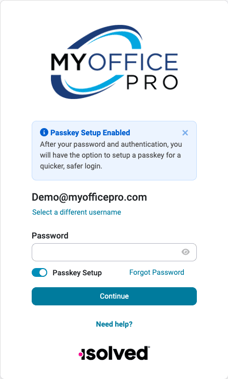
If you receive an error message stating "No Accounts Found" after logging in, contact your employer to update your access.
-
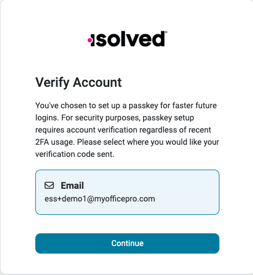
Select one of the listed methods to verify your account.
- Click Continue
-
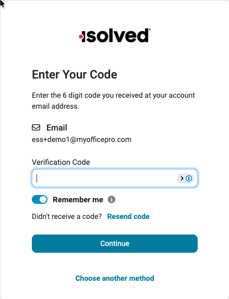
Enter the verification code.
-
Click Continue
-
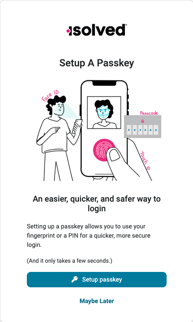
The option to "Setup a Passkey" appears. You have two options available on this page.
-
Setup Passkey - allows you to use your fingerprint or a PIN for a quicker, more secure login.
-
Maybe Later - allows for this setup to be completed later. If this option is selected, this opportunity will be presented at subsequent logins.
-
-
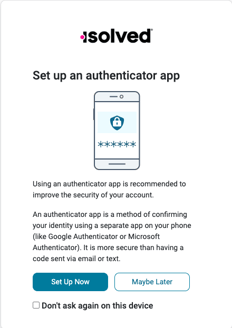
The option to "Setup an Authenticator App" appears. You have three options available on this page.
-
-
Set Up Now - allows you to set up a passwordless option. Once this is set up, future logins will use the options you have added.
-
Maybe Later - allows for this setup to be completed later. If this option is selected, this opportunity will be presented at subsequent logins.
-
Note: This does not allow you to bypass multi-factor authentication.
Don't Ask Again On This Device - will prevent this message from showing up again.
-