
-
Receive the activation email and click the link in the email.
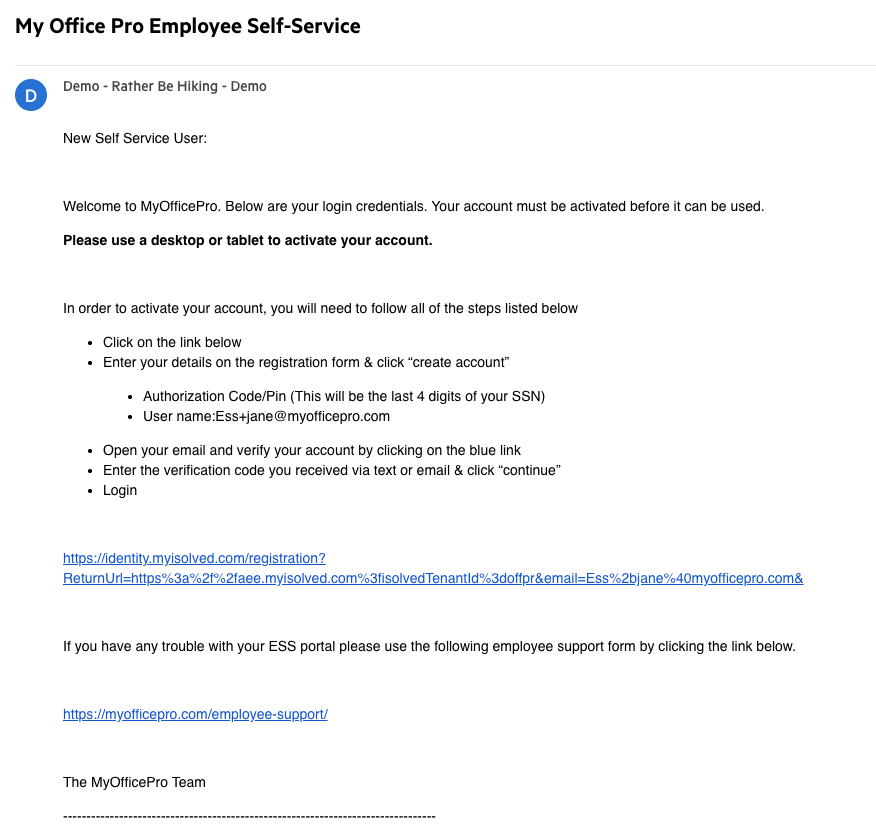
-
New Account Registration
- A new tab opens for you to register your account.
- Your email address is pre-filled in the form and serves as your username every time you log in to AEE.
A. Enter your First Name and Last Name.
-
You can add a Mobile Number. If you don’t want to add a phone number at this time, you can always add it later on your Profile screen in the ESS website or app.
-
Create a Password. The password requirements are a minimum of 12 characters, at least one lowercase alpha [a-z], one uppercase alpha [A-Z], one numeric [0-9], and one special character. Spaces are allowed to support passphrases.
-
Re-enter the password you added in the previous field to confirm your password. Note: Your password does not expire.
-
Select a Challenge Question, enter your answer, and confirm your answer.
-
Select Create Account.
-
Once you click on Create Account, a screen pops up letting you know that you will receive an email to confirm your account. This step must be completed to access your Self-Service account; it cannot be skipped.
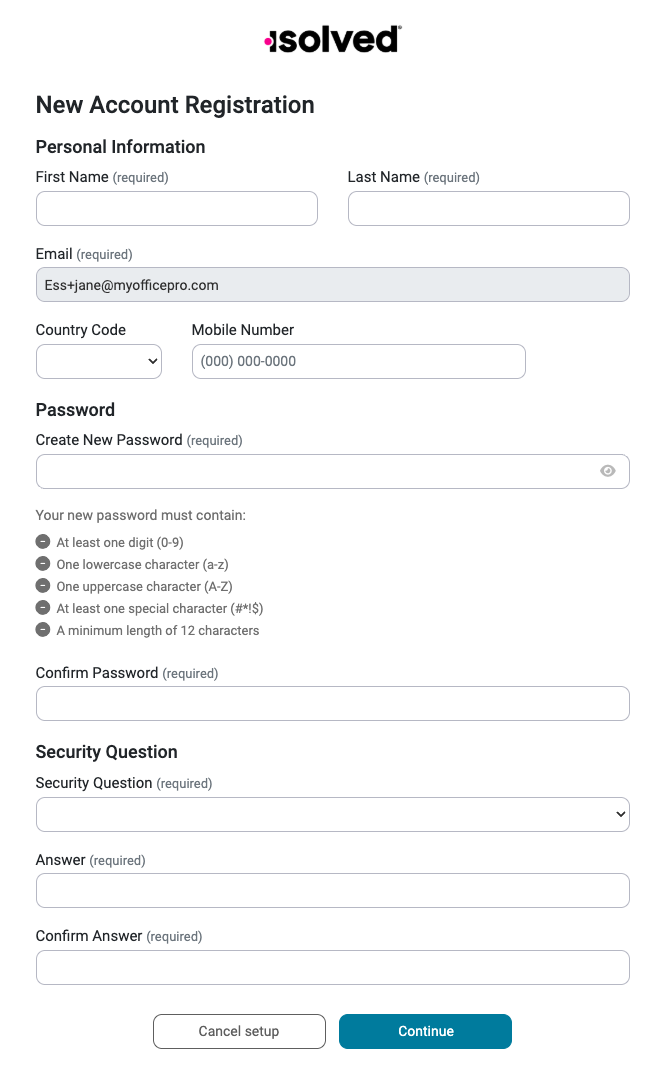
- Your email address is pre-filled in the form and serves as your username every time you log in to AEE.
- A new tab opens for you to register your account.
-
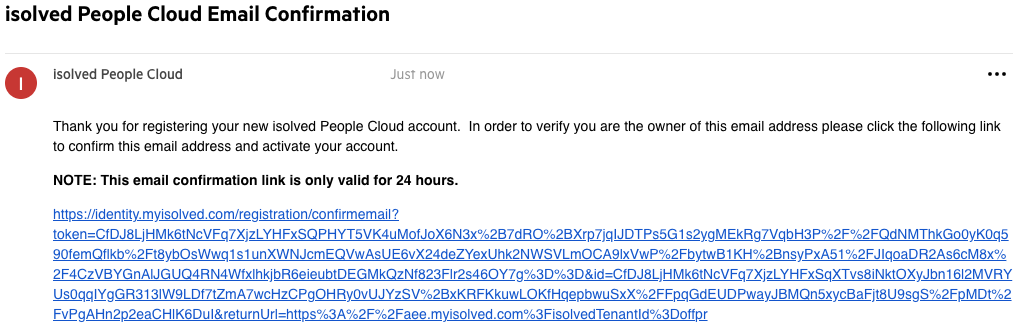
Once you receive the email, click the link to confirm. You are taken to a confirmation screen.
- Account Confirmation
-
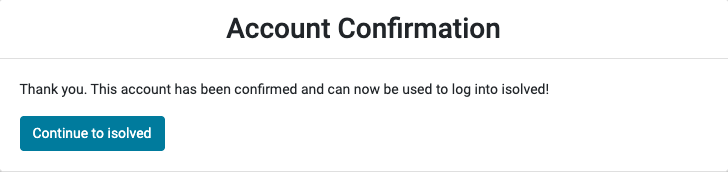
Account Confirmation Screen without a Mobile Phone Number Entered.
-
Account Confirmation Screen with Mobile Phone Number Entered
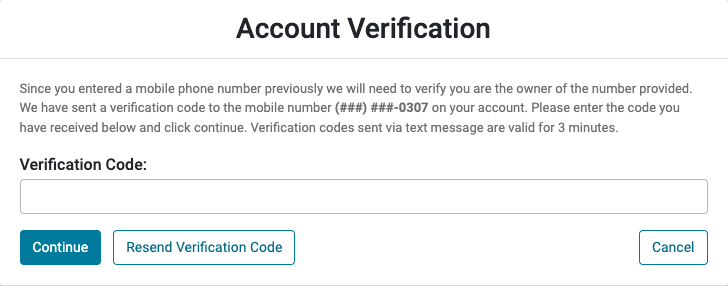
If a mobile phone number was entered, you will receive a text message verification code, which you enter on the Account Verification Screen.
-