
Go to Employee Admin Tools > Employee Administration > Self-Service Management.
-
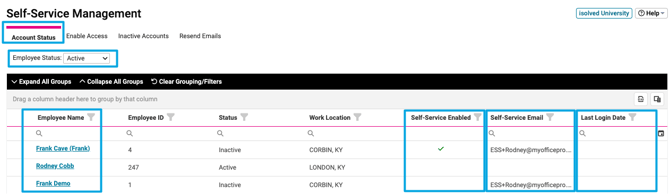
Account Status Tab
Allows client users (employers) to see who has an ESS email address, ESS enabled, and the date of the employee's last login.
-
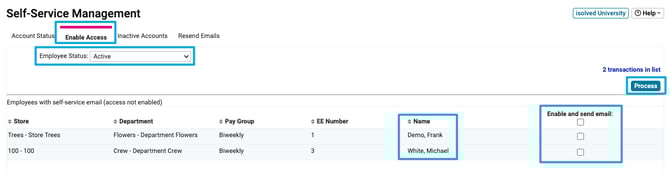
Enable Access Tab
Allows client users (employers) to enable ESS access for multiple employees whose email addresses are already entered but who do not have ESS activated.
-
Select the employees you want to enable access.
-
Click Process
-
The employee will receive an email with activation instructions.
-
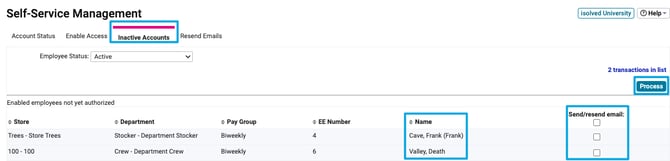
Inactive Accounts Tab
Accounts that are not used for a period of time become inactive. This tab allows client users (employers) to reactivate multiple inactive accounts.
-
Select the employees you want to enable access.
-
Click Process
-
The employee will receive an email with activation instructions.
-
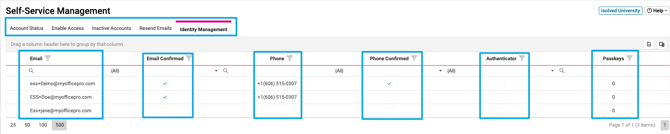
Identity Management Tab
This tab displays an employee’s account information from ESS. This consolidates each user’s identity details so admins and support teams can quickly view account status and assist with recovery.
The tab shows:
-
The identity email
-
Email confirmation status
-
Mobile phone number
-
Mobile phone number confirmation status
-
Authenticator indicator to show if an authenticator app is in use
-
Number of passkeys
-
Users can remove authenticators and/or passkeys when needed by selecting the ellipses to the left of the user's email address.
-